 Tim Ross
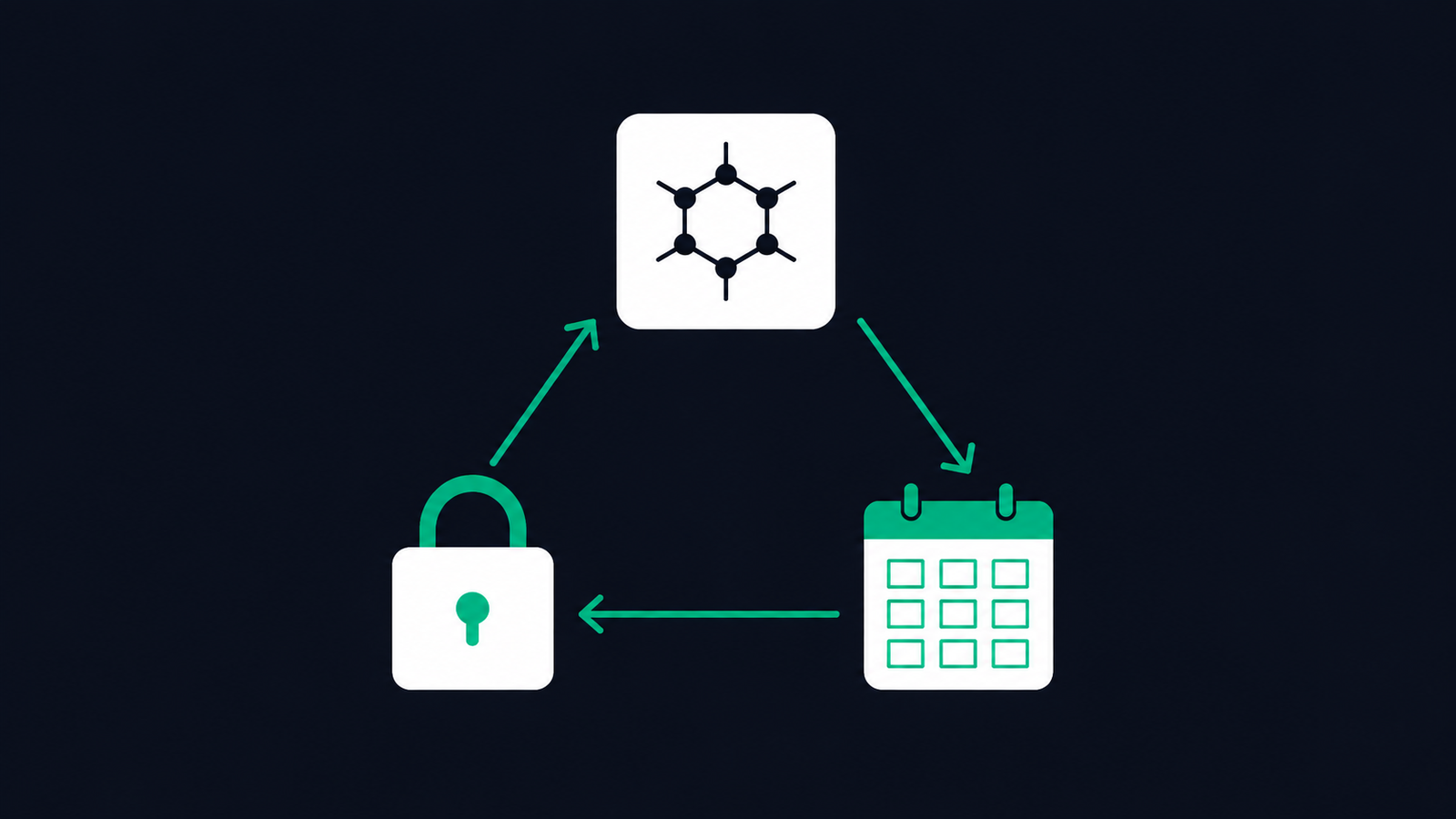
GrapheneOS users have usually already removed the Google account, which is exactly what makes calendar and contact sync awkward: the phone still has a Calendar Provider and a Contacts Provider, but nothing filling them. SilentSuite's native Android app fills that gap. It decrypts Etebase data locally and copies calendars and contacts into Android's system providers while the sync server stores ciphertext.
On GrapheneOS, the important setup rule is simple: install the sync app and the calendar or contacts apps that need its data in the same user profile. GrapheneOS profiles have separate apps, accounts, contacts, calendars, app data, and encryption keys. That isolation is useful, but it also means a sync adapter in one profile cannot populate the providers in another profile.
This is an independent setup guide. SilentSuite is not affiliated with, endorsed by, or partnered with GrapheneOS. GrapheneOS behavior described here comes from the project's official features overview and usage guide.
GrapheneOS needs no Google account to sync calendars and contacts. Install the SilentSuite Android app and the calendar and contacts apps that consume its data in the same user profile, because GrapheneOS profiles have separate apps, accounts, and system providers. Grant the sync adapter real Calendar and Contacts permissions, since Contact Scopes blocks the writes a sync adapter needs. Sandboxed Google Play stays optional and matters only if some other app you install depends on it. The hosted service is listed as From €3/mo, and the AGPL-3.0 server can also be self-hosted.
How do GrapheneOS profiles affect calendar and contact sync?
A GrapheneOS user profile is a separate Android workspace. The official user-profile documentation says each profile has its own instances of apps, app data, and profile data, including contacts. Apps cannot see apps in other profiles and can communicate only with apps in the same profile, with mutual consent. Each profile also has encryption keys based on that profile's lock method.
Android's account and content-provider model follows that boundary. A sync app installed in your Owner profile registers its account and sync adapters there. Calendar collections are written to that profile's Calendar Provider, and address books are written to that profile's Contacts Provider. A calendar UI or contacts UI in a secondary profile sees that secondary profile's providers, not the Owner profile's copies.
Put every app in the upper flow in the same profile. The lower profile remains a separate workspace unless you repeat the setup there.
Logging a secondary profile out is stronger than switching away from it. GrapheneOS documents that a logged-out profile becomes inactive, its apps cannot run, and its disk-encryption keys are purged from memory and hardware registers. Calendar and contact sync in that profile will therefore wait until the profile is active again. Optional notification forwarding can show notifications from a background profile, but it does not merge that profile's contacts or calendars into the active profile.
Which apps need to be installed in the same profile?
For system integration, keep these pieces together in the profile where you want the data to appear:
- The SilentSuite Android app. Install the signed APK from the current SilentSuite release in the chosen profile. Sign in there, because Android accounts are profile-specific.
- A calendar viewer and editor. Use a calendar app that reads Android's system Calendar Provider. The sync adapter is not itself a replacement for every calendar UI.
- A contacts viewer and editor. Use a contacts app that reads Android's system Contacts Provider. The dialer can also use provider contacts when the relevant access is available.
Installing the same package in multiple profiles creates separate app instances. It does not create a shared installation with shared data. If you want a private address book only in one secondary profile, keep the SilentSuite account, sync app, and trusted viewer apps there. If you want the same encrypted account in two profiles, configure it separately in both and expect two local plaintext copies, one inside each profile.
What do Android's Calendar and Contacts Providers expose?
SilentSuite's Android app is a sync adapter. Current source registers account authenticators and adapters for Android's calendar and contacts authorities, then reads and writes through the standard Calendar and Contacts Providers. Network sync uses encrypted Etebase data. The local providers hold usable calendar events and contact records so other apps in that profile can display or edit them.
This preserves the server-side encryption boundary, not a local walled-garden boundary. The SilentSuite server receives encrypted collection data and does not need plaintext event or contact fields. On the phone, however, an app with sufficient calendar or contacts access may be able to read provider data in its profile. The guide to walled gardens versus system integration explains that trade-off in more detail.
Provider integration is also different from running a CalDAV or CardDAV server on the phone. SilentSuite syncs natively over Etebase and writes Android records locally. Its standalone CalDAV/CardDAV bridge is for supported desktop clients. See how the local DAV bridge works for that separate architecture. The general Android version of this two-boundary picture, including where DAVx5 and ordinary CalDAV sit, is in CalDAV on Android.
Which permissions should you grant on GrapheneOS?
Grant permissions according to each app's job, not according to a blanket idea that every app in a privacy-focused profile is trusted. SilentSuite needs network access to reach the selected hosted or self-hosted Etebase server. For full system-provider integration, the current Android app also requests read and write access to calendars and contacts. Read access lets it detect local changes and reconcile state; write access lets it create, update, and remove provider records during sync.
- SilentSuite sync app: allow Network, Calendar, and Contacts access when you want both provider integrations. If you do not want one category in the system provider, do not assume a partial permission grant is a tested way to disable only that sync path. Use the app's collection and sync controls, and verify the resulting behavior before relying on it.
- Calendar UI: grant calendar access only to the app you chose to display or edit system calendars.
- Contacts UI, dialer, or messenger: decide separately whether each app needs all contacts, selected contacts, or no contact access.
- Unrelated apps: leave Calendar and Contacts denied. Profile isolation does not replace app-level permission choices inside the profile.
Can GrapheneOS Contact Scopes replace Contacts permission for a sync adapter?
No, not for a sync adapter that must maintain the system address book. GrapheneOS Contact Scopes is an alternative for apps that ask to read your contacts. It can expose selected contact data, a whole contact, or a contact group while hiding the rest. With Contact Scopes enabled, write access is fully blocked.
That last constraint matters. SilentSuite's contact sync adapter needs to add, update, and remove its own provider records. Contact Scopes cannot provide that write path, so do not enable Contact Scopes for the sync adapter and expect contact sync to work. Grant the real Contacts permission to the sync adapter if you want it to populate Android's Contacts Provider.
Contact Scopes can still be useful for a different app in the same profile. For example, a messaging app may need a small subset of your address book while SilentSuite retains full provider access for sync. Configure scopes on the messaging app, not on the sync adapter. This article makes no claim that Contact Scopes supports or emulates a writable sync-adapter account.
Do you need sandboxed Google Play for calendar and contact sync?
SilentSuite's current Android sync path uses Android accounts, content providers, and sync adapters. It does not require Google Play to move Etebase calendar and contact data into those providers. A GrapheneOS setup can therefore remain Google-free if the calendar and contacts apps you choose also work without Google Play.
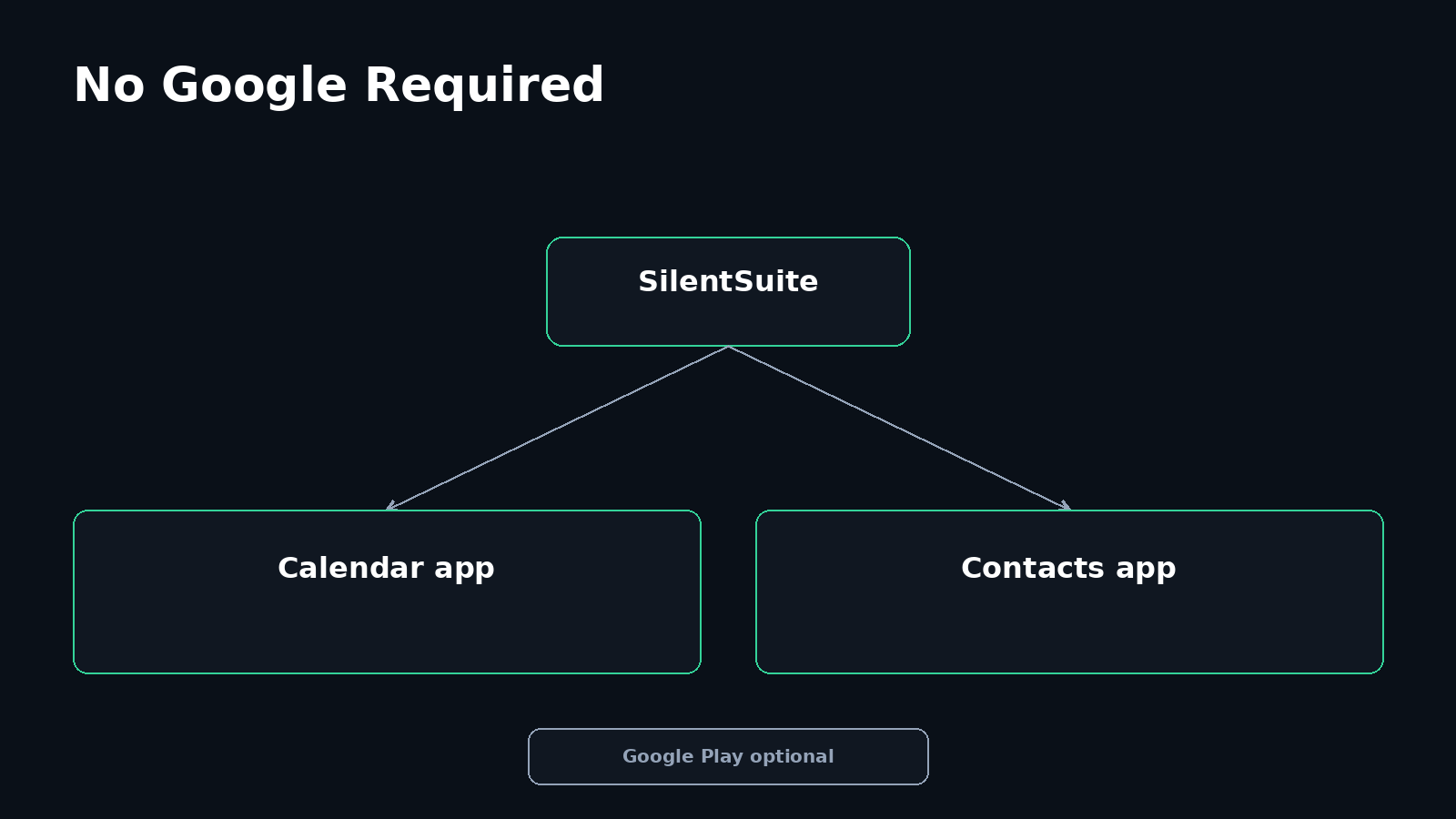
If another app you want depends on Google Play, GrapheneOS offers sandboxed Google Play as an optional compatibility layer. GrapheneOS installs the official Google Play components as regular sandboxed apps without special OS privileges. They are available only in the profile where you install them, and only apps in that profile can use them.
Keep that dependency local. If a calendar UI in a secondary profile needs Google Play, install sandboxed Google Play in that secondary profile. You do not need to install it in the Owner profile as well. Signing in to a Google account is optional unless a feature you choose specifically requires it. Installing Google Play also does not make contacts or calendars cross profile boundaries.
How reliable is background sync on GrapheneOS?
Treat background sync as scheduled work, not a precise clock. The SilentSuite Android app registers automatic and periodic sync through Android's sync framework. Android decides when eligible background work actually runs based on network availability, system scheduling, battery state, profile state, and account settings. A configured interval is not a guarantee that every cycle starts at that exact minute.
Start with the default battery policy. If updates appear delayed, check the simple boundaries before granting broad exceptions:
- Confirm that the profile containing SilentSuite is active, not logged out.
- Confirm that SilentSuite still has Network, Calendar, and Contacts access for the integrations you use.
- Confirm that automatic sync is enabled for the SilentSuite account and the relevant calendar or address book.
- Trigger a manual sync. If manual sync fails too, investigate account, permission, network, or server errors rather than battery scheduling.
- Only then review the app's battery settings or a battery-optimization exception. An exception may improve timeliness, but it is not a fix for a logged-out profile, revoked permission, disabled network access, or invalid account.
GrapheneOS specifically recommends a battery-optimization exception for sandboxed Google Play services when an app relies on it for background push notifications. That advice applies to the optional Google Play dependency. It should not be generalized into a promise that every sync adapter needs Google Play or that exempting Google Play will repair SilentSuite's provider sync.
How do you set up a Google-free GrapheneOS sync profile?
- Choose the profile. Decide where plaintext provider copies should exist. Use Owner or create a secondary profile for this data boundary.
- Install all required apps there. Install SilentSuite, one system-provider-compatible calendar app, and one contacts app in that same profile.
- Add the SilentSuite account. Sign in to the hosted service or enter your self-hosted server details in the Android app. Do this from the chosen profile.
- Grant the minimum functional permissions. Allow Network and the read/write Calendar and Contacts permissions needed by the sync adapter. Keep unrelated apps denied. Do not substitute Contact Scopes for the adapter's writable Contacts permission.
- Run and inspect the first sync. Confirm that the expected calendar and address-book collections appear in the chosen viewer apps. Create a non-sensitive test event and contact, sync, then verify them on a second SilentSuite client before importing a full dataset.
- Test the profile lifecycle. Switch away and back, run another manual sync, and remember that logging the profile out stops its apps and scheduled work until it is active again.
If you are moving an existing address book, read the guide to end-to-end encrypted contacts before deciding which local apps should receive provider access. Keep an export of the original data until you have verified records, recurring events, reminders, and edits in both directions. The route comparison in syncing Android contacts without Google covers local-only storage, CardDAV, Nextcloud, and encrypted sync side by side.
FAQ
Can SilentSuite sync across GrapheneOS user profiles?
No. Each profile has separate app instances, accounts, contacts, and calendars. Install and configure SilentSuite in every profile that should have its own local copy.
Does SilentSuite require Google Play on GrapheneOS?
No for its current Android account, provider, and sync-adapter path. Sandboxed Google Play is optional when another app you choose depends on it, and it must be installed in that app's profile.
Should I enable Contact Scopes for SilentSuite?
Not if you want SilentSuite to sync contacts into Android's Contacts Provider. Contact Scopes blocks writes, while a contact sync adapter needs read and write access. Use Contact Scopes for other apps that only need selected contact data.
Can apps in the same profile read synced contacts and events?
Apps with sufficient provider permissions may be able to read them. End-to-end encryption keeps plaintext away from the sync server, but system integration intentionally creates usable local provider records. Grant Calendar and Contacts access deliberately.
Will background sync run while a profile is logged out?
No. GrapheneOS documents that apps in a logged-out profile cannot run. Sync resumes only after that profile is active again, subject to Android scheduling, network, account, and battery conditions.
Do I need a Google account to sync calendars and contacts on GrapheneOS?
No. SilentSuite's Android sync path uses Android accounts, content providers, and sync adapters, none of which require a Google account or Google Play. The setup stays Google-free as long as the calendar and contacts apps you choose also work without Play.
Which GrapheneOS profile should hold my calendar data?
The profile where you want plaintext to exist. Provider records live inside one profile, so keep the SilentSuite account, the sync app, and the viewer apps together there. Repeating the setup in a second profile creates a second local copy rather than a shared one.
A private GrapheneOS setup is not defined only by removing Google. It is defined by where plaintext exists, which profile owns it, and which apps can read it. Keep the sync adapter and trusted viewer apps together, keep unrelated permissions closed, and test the entire path before treating it as your only copy. Create a SilentSuite account or use the open-source server for a self-hosted setup.
Interested in private sync?
SilentSuite is available now as a public beta. Sign up and start syncing your calendar, contacts, and tasks with end-to-end encryption.
Get started for free